Friday, October 17, 2014

Review : Mad Catz MMO 7 Gaming Mouse

      The collection of Mad Catz Cyborg gaming mice will undoubtedly be something Batman would be seen toying with in the depths of the Batcave.
      If it’s extreme design specifications you’re after, then Mad Catz products never fail to deliver. And the MMO 7 is without a doubt the most extreme mouse we’ve ever tested.
      Despite looking like it's about to transform into a mini robot, the MMO 7 offers the gamer a wide variety of enhancements to help them achieve better scores and more looting while playing their favourite MMO. For example, there are 90 programmable in-game macros, through the use of the 15 programmable buttons, three position MMO mode switch and two position MMO shift buttons. There are side buttons for up, down, left and right, and a 6400dpi dual laser sensor with a six metre per second, 50g acceleration. The 1.8 metre braided USB cable is coloured to match the design of the mouse, and there are 16.8 million LED colours to choose from and configure for any of the modes you customise.
      The design is quite remarkable, it can be adjusted to suit the user through length, grip styleand hand size. Though, the Mad Catz MMO 7 was really very comfortable, even in its default out-of-the-box position. The soft, rubbery body feels nice under the hand and offers plenty of grip, but there are also ‘pinkie’ grips so you can comfortably rest your little finger while in use.

DETAILS
• Price: £75
• Manufacturer: Mad Catz/Cyborg
• Required spec: Spare USB port, Windows XP or later/Mac OS X for
software installation

      To add to the design features, the MMO 7 is a sturdy and well-balanced mouse to begin with, but thanks to the unique weight system, you can add five 6g weights to a section under the palm rest or remove them, to improve the feel of the device.Getting the perfect feel means you’ll improve the performance of the mouse while gaming, and with it being suited to your specifications, you’ll be able to transport the MMO 7 around with you to gaming events.
      It actually turned out to be quite an effective mouse during tests. The software, the Mad Catz ST (Smart Technology) Programming Suite, was very intuitive and allowed easily apply a macro to the games played, as well as allowing to create or edit your own depending on the game and way in which he held the mouse.
      While the Mad Catz MMO 7 left you feeling like you’d used something from the future, we did again have to question the extreme design, especially when a more conventional mouse can offer just as much performance in-game. Obviously we’re being a little harsh here, but the Mad Catz will not be marked down because of it's looks; it’s just that the outof-this-world designs seem rather clichéd these days.
      Saying that, though, this was an extremely comfortable mouse and has everything you could possibly need to get the most from your gaming.

Review : Generation L Leap

      By now, Android L has made itself known to the world, and this time Google has taken a leaf out of the likes of Microsoft and Apple's books and given the public at large an opportunity to get an early glimpse of the new OS before release. To do this, you'll need either a Nexus 5 or a Nexus 7 2013 – though it's probably not a good idea to install a beta operating system on your main Android device. That is, unless you have a mobile column to write...

Installation

      The instructions and downloads required for the Android L preview are all on Google's developer preview site (developer.android.com/preview) and, at first glance, are straightforward. To be fair to Google, many will follow these instructions and have no issues at all, but this was not the case for me. As those of you whom read my columns may know, I'm no stranger to ROM flashing and, on unfortunate occasions, unbricking; so the simple instructions here gave me no cause for concern.

      Sadly, though, the first attempt ended in boot hanging, as did the second, even when pushing the ROM contents manually via ADB. A third attempt even wiped the recovery partition. Eventually, employing the use of the excellent Unified Android Toolkit yielded a full boot, albeit one taking an initial ten minutes. The moral of the story is this: only undertake this if you know how to get back out of it, otherwise you may have a nice new mini chopping board instead.78 Issue 1323.

In Use

      Thankfully, in use, Android L is quite pleasant. At first glance, bar the new wallpaper and the slightly different lock screen, you'll wonder what the difference is. The first time you'll encounter a major change is likely to be with notifications, whether with the new Now-like bars that drop down in an iOS way or the drop-down bar that initially hides the quick buttons that require a second drag to reveal.
      The next major UI changes you may see will probably be the settings and the application switcher. Settings has a far more attractive, lighter layout that is confusing at first but soon becomes clear and friendly. Changing your Home launcher is now handled here and in a simple manner. Switching apps takes on a Rolodex-like look, with each app layered on top of the next in a card stack. In use, it is akin to the old Apple Coverflow UI, but in practice it works in much the same way as before.
      The gallery application has also had a big update, adding a ton of interesting filters and styles, all tweakable. While there's nothing you won't have seen in the hundreds of 70s filter apps already available, they are fun to play with and can add a special something to a drab snapshot.
      While Android L doesn't have a huge leap visually, it's under the hood where the changes have been most apparent. L is the first version of the OS to drop the old Dalvik runtime, instead moving over fully to ART. In practice, this means instead of compiling the app each time it's run (Dalvik), it precompiles on installation and launches far quicker (ART). ART is actually an option in KitKat, but running it in that will highlight the problem with L too: a few apps have not been compiled to work with ART. They will eventually, of course, but bare this is in mind if you want to switch now. L is pretty snappy with ART, though, and on a prerelease build, it's a good sign of things to come.
      The other big leap with L is Project Volta, Google's attempt to squeeze more life from the batteries powering Android devices. Part of this saving comes from ART itself or the lack of Dalvik's on-thefly compilation, as well as analysis of what is stored ready to go and what requires waking the device's cores for. In practice, I have found it has been longer between charges, though difficult to quantify. Others have given ranges of 25-35% more power, which on a preview build, is impressive.

Worth It?

      Is the Android L preview worth your time (and possible pain)? If you're versed in the ways of the ROM and have a spare Nexus 5 or 7 2013, then sure, why not. Just be prepared to lose everything on it and maybe a few hours. Is it worth using your daily device for this, though? No. There are a signs of sluggishness here and there, ART still isn't fully supported, and nothing is yet certified to work correctly with it. However, come October or November, Android L, 4.5, 5 or whatever it's christened, may just be worth getting a little excited over.

Thursday, October 16, 2014

Everything You Always Wanted To Know About Cloud Backup

      Many people choose to back up their most valuable data to an external hard disk or perhaps a memory stick, but this plan is fundamentally flawed. If your home is destroyed by a meteor or simply burgled, it’s likely the external storage will go the same way as your PC and other possessions – converted to smouldering ruins or carried off in a sack marked ‘swag’.
      Okay, so events like that are rare, but cloud storage provides an alternative (or additional) bullet-proof solution that’s immune to them.
      For those who don’t know, ‘the cloud’ is tech speak for internet storage that’s accessed via special apps you install on your PC or mobile device. On a PC the cloud storage apps usually create a magical folder, the contents of which are automatically (and invisibly) synced with the cloud storage whenever you add new files or modify existing ones. You can install the client app on other computers and, once logged in, your files will sync there too.
'Because of the cost of cloud storage, dif cult decisions sometimes need to be made`
      Alternatively, some dedicated cloud backup apps simply sync folders or types of file that you specify and scan periodically for changed files. Restoring data after a disaster is a matter of installing the app on a different computer and selecting the files or folders you wish to restore.
      Cloud storage is undoubtedly one of the greatest innovations of recent years, but a persistent concern is privacy. After all, you’re passing your files to a third party and have to trust they won’t peek at them. You also have to believe they’ve put in place sufficient protection against hackers – and in our post-Snowden world, government agencies fall into this category.
      There are various solutions to this problem, but it’s a mistake to believe all cloud services are created equal. In you want true privacy and security, some thought needs to go into your choices, as we explain over the following pages.

Basic Backup

      The most fuss-free way of using cloud storage to back up your files is to simply work within the cloud storage folder, essentially turning it into your User folder. That is, when you create files, you should save them to the Dropbox or Google Drive folder or copy existing files there. Most desktop apps like Microsoft Office or Adobe Photoshop let you change the default save location, so saving a cloud copy of each file can become something you don’t even think about.
      This way, your files will automatically be backed up in the cloud, as will any changes you make to them, and restoring them in the event of disaster involves simply installing the cloud storage client app on a different computer and logging in, which will create a synced clone of the folder.
      In addition to backup, the benefit of this approach is that you have instant access to your files anywhere there’s an internet connection. Want to show somebody you’ve just met your holiday snaps that normally live on your PC? Well, now you can, and the major cloud services offer mobile apps to let you get at your files.
      Dedicated cloud backup services take a different approach compared to basic cloud storage providers, in that their apps sit in the background and periodically back up certain folders or types of files, regardless of where they’re stored. Setup is usually automatic, although if you don’t use the usual User folders such as Music, Movies, My Pictures and so on, then you might need to delve into the settings to tell the app where to find your files.
      Unlike with a backup disk attached to your PC, the goal of cloud storage and backup isn’t to clone your entire system. If nothing else, that would be prohibitively expensive because cloud storage is charged by the gigabyte. Instead, the goal is to back up your personal data, such as pictures, music, office files and so on.
      Because of the cost of cloud storage, difficult decisions sometimes need to be made. For example, it might be cheaper to burn your MP3 collection to DVD-R discs for backup than rely on cloud storage. Or you might simply choose not to bother backing up your multimedia collection. After all, if they’re purchased through a service like iTunes or Google Play you’ll probably be able to download them afresh, and for free, should disaster strike. Just look in the previous purchases section of each service.
      If you do decide to back up large multimedia files, the initial backup could take a while to complete. Most home internet services in the UK are asynchronous, which means that the upload speed is significantly slower than the download speed. For example, my ADSL service downloads at around 16Mbps, but uploads are limited to around 800Kbps.
      Whichever method you choose for backing up – cloud storage or dedicated cloud backup – privacy should be a prime concern, and that means understanding what types of encryption are provided by the cloud storage provider.

Encrypted Backup

Like most cloud storage services, Dropbox encrypts your files on their
servers but that doesn’t protect your files from them.
      There are three basic ways cloud storage providers operate when it comes to security provisions. With the simplest approach, data is sent from your computer to the cloud server, where it’s stored unencrypted. This has obvious security implications. Anybody with physical access to the cloud storage server computers could access your files, as could any hacker who gains unauthorized access. Alternatively a rogue member of staff might look at your private data.
      To remove these possibilities, the data might be stored encrypted on the cloud server. In fact, this is the approach used by most cloud storage and backup services. Unfortunately, the encryption is usually controlled by the cloud storage provider, so they can still access your files by simply decrypting them whenever they want. This level of encryption does present a brick wall to any hacker that somehow gains access to the server, though.
'A DIY approach to encrypted cloud backup can be signi ficantly cheaper`
      The best form of cloud storage is where providers have a ‘zero knowledge’ policy, which is to say the encryption takes place on your computer before the files are uploaded. As such, the cloud storage provider is simply unable to access the files, and to them the files appear to be gibberish.
Cloud backup apps like Spideroak promise ‘zero knowledge’,
meaning they simply can’t view files you store with them
A DIY approach with Amazon Glacier and CloudBerry Backup can remove you
from the radar of hackers and provide even tighter security
      It’s worth noting that no matter which of the three above approaches is used, the connection to the cloud backup service across the internet will always be encrypted with transport layer security (TLS), which is the same type of security used to protect https:// websites such as online banking. In fact, when cloud services boast that they provide encryption, this is often what they’re referring to, and it can be very misleading: this is encryption for the sake of data transfer and has no bearing on whether files are stored encrypted on the cloud storage servers.
      However, if a zero-knowledge approach is clearly the best, why don’t all cloud storage providers use it? The answer lies in convenience – for you as an end user and the cloud service provider itself.
      One severe limitation of zero-knowledge cloud storage is that your account password becomes supremely important, because it’s used to create the encryption key that protects your files. If you forget the password, then your backed-up files are completely inaccessible to you or anybody else. Worst of all, people tend not to realize they’ve forgotten a password until they need to use it.
      If the cloud backup service controls the encryption, then they’re able to offer niceties such as password resets should you forget your login details and technical support whereby they can dig into your file collection
      More importantly for cloud storage providers, keeping control of encryption allows space to be saved on the server by only storing one version of a file, regardless of how many users upload it. This is called deduplication. If users Bill, Chris and Mike upload the same MP3 file, then only one copy of the file is stored, even though all four users appear to have their own copy. If the MP3 file is individually encrypted by each user, then it’s impossible for cloud service providers to know it’s the same file, meaning much more storage space is used. This is why zero-knowledge cloud services tend to be more expensive.
to fix errors. Equally, if files are encrypted by the user before uploading, then they simply can’t be shared with other users. Offering files for download from public web pages becomes impossible, as does collaborative working. These are key features of cloud services like Dropbox and Google Drive.

Zero Knowledge

      For those who desire the best possible security, zero-knowledge encryption – sometimes referred to as personal encryption – appears to be the way to go. But even here there are caveats. Not all zero-knowledge services are the same.
BoxCryptor provides a layer of
uncrackable encryption to popular
cloud storage services like Dropbox
and Google Drive
      An encryption key is needed for a file to be encrypted and subsequently decrypted, and this is usually stored as a file. Imagine a situation where this key file is stored only on your computer, where it’s used to encrypt files for upload to the cloud backup service and for decrypting during any files you choose to restore. This sounds like the perfect solution, right? Nobody else will be able to ever decrypt your files, because they simply don’t have the key.
'Importantly for cloud storage providers, keeping control of encryption allows space to be saved`
      Unfortunately, this is a dangerous setup, because if your hard disk fails, then the encryption key stored on it will also be lost. Once that’s lost, there’s no way to decrypt the cloud backup data.
      Because of this risk, most cloud services offering personal encryption use a ‘secrets file’, which contains the encryption key, alongside other authenticating data. This resides on your computer’s hard disk and is itself encrypted using a password you supply. It’s also uploaded to the cloud server, along with your data, so it can be restored in future and subsequently unlocked using your password, to allow the decryption of all your files.
      Although sensible, this approach provides a point of weakness, because should a hacker get hold of the secrets file, they can attempt to brute force its password – something that’s significantly easier than attempting to crack the actual encryption key. A brute force attack is where hackers try literally billions of guesses, generated automatically by a special program running on powerful computers.
Some cloud backup services like Cyphertite let you take control of your all-important encryption key, so nobody can hack it
      Because of the way encryption works, brute force guessing an encryption password is time consuming, but it isn’t impossible and gets a little easier with every faster model of CPU or GPU that’s created.
      You can make the hacker’s job significantly harder by ensuring your cloud password is extremely strong – at least 20 characters long and random, including letters, numbers and symbols.
      To protect against the admittedly unlikely eventuality of hackers getting hold of the secrets file, a handful of cloud storage services provide the option of not uploading it, thus providing the best possible security. In this instance, you should back up the secrets file to something like a USB memory stick (or perhaps two or even three sticks, to prevent against loss). Some providers even advocate printing it out, so it can be re-inputted by hand, should the need arise – despite the fact it’s usually several lines of user-unfriendly gibberish letters, numbers and symbols.

Choosing A Provider

      The table in Picture provides an at-a-glance view of some major cloud services you might choose to go with. We’ve only included services that provide zero knowledge encryption, because we think that, in today’s world, this is a necessity. Unfortunately, there aren’t very many of these at present. Most offer free plans, so you can discover how the service works for you.
      Most cloud providers not only back up files but store older versions of your files. In other words, if you tweak a photo, save your changes but decide you’ve made a mistake, you can use your cloud storage to retrieve an earlier version. Older versions are usually stored for a limited time, although some storage providers hold them indefinitely.

Sync Yourself

      A DIY approach to encrypted cloud backup can be significantly cheaper than services like Dropbox or Spideroak. The trick is to use online storage space that you ‘rent’ yourself, and use a dedicated client app on the PC to back up to it. The client encrypts files before uploading them.
      While just about any online storage can be used for backup, such as FTP space provided as part of web hosting deals, many people rely on Amazon Glacier (aws.amazon.com/glacier). This is extremely inexpensive bare-bones cloud storage designed for archiving files and is offered by Amazon as part of its wider Web
Services product. With Glacier you pay for what you use, rather than via monthly or yearly subscription fees. Prices start from US$0.01 per gigabyte of space, per month. However, retrieving data in the event of a disaster also has a cost attached, with the cost dropping significantly if you retrieve data slowly over several hours.
'Most cloud providers not only back up files but store older versions of your fi les'
      Files uploaded to Glacier are encrypted automatically and invisibly to the user, although this approach means Amazon holds the encryption key and can potentially access your data. Therefore, encrypting files before uploading is a necessity for full peace of mind.
      Apps like CloudBerry Desktop Backup (www.cloudberrylab.com/amazon-s3-cloud-desktop-backup.aspx) cost $29.99 and offer the same features as dedicated cloud backup apps, except they let you choose your destination, which can include Amazon Glacier. CloudBerry Desktop Backup also includes individual file encryption.
      Before using apps like CloudBerry, you’ll need to sign up for Glacier, which will involve handing over credit card details and being issued an Access Key ID and Secret Access Key, which you’ll need to enter into the backup software.
Mega offers a similar service to Dropbox, except it offers zero-knowledge
encryption, so it can’t snoop on your file

      A semi-DIY solution is to use any cloud storage service, regardless of whether it offers encryption, and encrypt files yourself before uploading using a third-party app like Boxcryptor (free from www.boxcryptor.com), which will automatically and invisibly encrypt files by creating a new virtual folder that you use instead of the main cloud storage folder. The cloud backup service then takes care of uploading in the background as usual.
      If you regularly use two of more computers, such as a desktop and laptop, then a third free potential solution is to use BitTorrent Sync (www.bittorrent.com/sync). This works like Dropbox, in that the contents of a magical folder are automatically synced to other computers on which the software is installed, and on which a secret passphrase has been entered. However, BitTorrent Sync is purely peer-to-peer, which means syncing only occurs while both computers are up and running; there’s no central cloud storage. However, if you have an old PC or laptop that you don’t mind keeping running 24/7, then installing BitTorrent Sync on it, along with your everyday computers, makes for a very usable solution. A similar but slightly more hands-on technology is SparkleShare (sparkleshare.org).

Otone Accento

Music on the go has never sounded so good

      Portable battery powered speakers often leave a lot to be desired in terms of both the level of audio they produce and the actual lifespan of the battery. You’ll often come across the scenario of an individual or group of people struggling to listen to the tinny warbling emitted from portable speaker, while firing a worrying glance at the dwindling power levels. However, that doesn’t always have to the case.
      The Ontone Audio Accento is an exception to the rule in this case. Here we have a an extremely portable device that measures just 137 x 57 x 38mm and weighs in at a paltry 200g yet offers an exceptional level of sound through a pair of 40mm full range 3W speakers. The lithium-ion rechargeable battery, when fully charged, can dish out up to ten hours of continual use according to the manufacturer – and take just an hour to recharge via mini-USB.
DETAILS

• Price: £30
• Manufacturer:
Otone Audio
• Website:
goo.gl/WhJi3O
• Required Spec: Spare
USB port/USB charger,
3.5mm audio port, SD
card (optional)
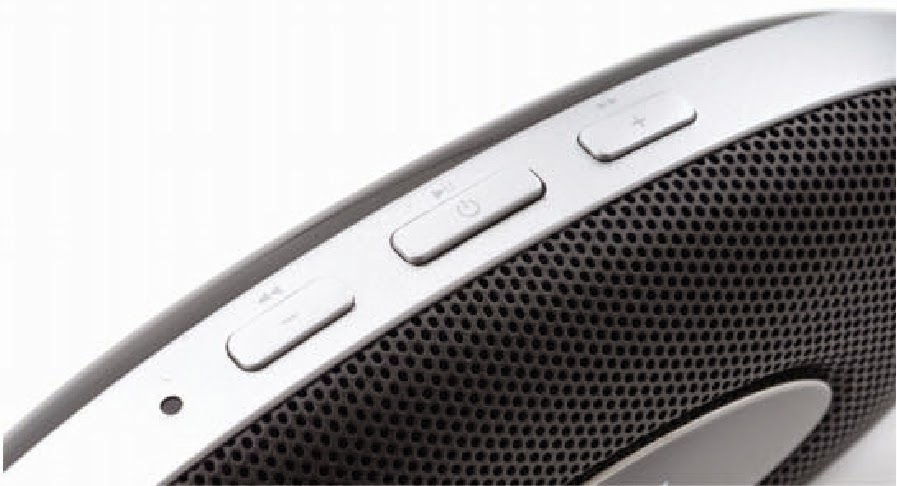
      In terms of connectivity, you get the standard 3.5mm stereo audio jack as well as mini-USB, but also Otone have cleverly included a Micro SD card slot with support for cards up to 32GB. The design of the Accento is surprisingly good, too – and of a higher quality than the price of the unit would first suggest. It’s an oval shape, with the speaker grill covering the front of the device, with a polished aluminium logo in the center. Along the top there are three slightly raised buttons for power/play/pause, volume up/skip forward and volume down/skip back, together with a single LED to signify the specific function and battery charge. One side houses the mini-USB port while the opposite has the 3.5mm audio jack, and the Micro SD card slot is located in a recessed area at the bottom of the speaker.

      There’s also a slide-out stand on the back of the speaker that, although strong enough to hold the speaker in an upright angle, is a little stiff to move without applying significant force.
An extremely capable portable speaker at a very reasonable price.
      Its operation is very simple. By pressing the power button for a couple of seconds the speaker will power up and once hooked up to a phone, tablet, MP3 player, laptop or PC via the 3.5mm jack will start to play whatever’s being outputted by Music on the go has never sounded so good the controlling device. If an SD card is fitted, the contents stored will start to playback – and when connected to a PC can act as a removable device to transfer music to and from the speaker. The default audio input, though, is the 3.5mm jack, which provides startlingly good sound. Volume can be increased significantly with little distortion in the playback, and, while lower frequency levels aren’t as good as a speaker with a dedicated bass, its generally adequate to allow for good allround audio. The battery life was also appreciated. In our tests the speaker managed to keep playing for a total of around eight hours, which is well within expectations – even after a charge of just over an hour.
      We were suitably impressed with this tiny, portable speaker. Otone Audio has done an exceptional job. There are also different designs and styles that can be applied to different models of the Accento – a Union Jack flag version, for example.
      If you’re in need of a really good portable speaker, then you won’t go far wrong with the Otone Accento.

Toshiba Stor.E. Canvio Desktop 2TB

      This is a sealed drive, so I can only guess that the 2TB drive inside is made by Toshiba (probably a desktop unit like the PA4292E-1HL0). What’s mildly amusing is that, if that's the case, the bare mechanism
costs £10 more than the same technology packaged in white and black plastic.
      Looking at what others are doing in this sector, about £60 for 2TB seems to be the going rate. Where this product possibly edges the others is in the software bundle, the excellent NTI Backup Now EZ, a product that costs £15 retail if you choose to buy it. What this offers is sequential scheduled backups that can secure your files, cloud storage, data areas or the entire system for a bare metal restore by making the Canvio bootable. It might not be equivalent to the most sophisticated backup solutions – it doesn’t offer live file capture, for a start – but the competitors don’t offer securing a complete system with their applications.
DETAILS
• Price: £60 inc. VAT
• Manufacturer: Toshiba
• Product Code:
HDWC120EW3J1
• Required Spec:
Windows XP or newer,
OS X (Tiger or better),
1x USB 3.0 or USB 2.0

       What it also does well is perform. In testing, it delivered excellent read and write numbers of 154MB/s and 144 MB/s respectively. There Toshiba offers two-tone storage at a more competitive priceare quicker solutions that use multiple drives or hybrid storage, but the Canvio Desktop 2TB is quick compared with most desktop drive enclosures. 

      If there is a complaint about this unit, it’s the weight. Obviously Toshiba don’t want anyone confusing this with one of their mobile storage products as it weighs in at a hefty 1.4kg, at least half a kilogram more than the Seagate 2TB Expansion Desktop Drive.
      Toshiba also decided not to grace this design with a power switch, something most people would normally expect to see on a desktop drive. The drive's on-board power management doesn’t appear to be able to tell if the PC is running on or not, unless it’s been shut down at the PSU.
Toshiba offers two-tone storage at a more competitive price
Specifications
Interface:USB 3.0 (USB 2.0 compatible)
Colour:black/white
Capacity: 2TB
File System: NTFS (MS Windows). The drive can
be re-formatted to HFS+ file system for full Mac compatibility
Power:AC Power adapter cable. Input: 100-240V, 650MA.
Output: 12V - 2A (EU/UK exchangeable plug head)
Dimensions:129 (L) x 42 (W) x 167 (H) mm
Backup Software:NTI Backup Now EZ
      For those who just want an externally connected USB 3.0 drive the Toshiba Stor.E. Canvio Desktop 2TB is a perfectly acceptable solution. If the 2TB in the review model isn’t enough capacity for you, Toshiba also make 3TB, 4TB and 5TB models, along with a cheaper 1TB option if you don’t need 2TB.

Wednesday, October 15, 2014

Razer Naga Expert MMO Gaming Mouse

      Many of us are quite happy with a standard mouse when it comes to gaming. However, some of you will scoff at such an idea and instead opt for one of the more glamorous and specifically designed peripherals.
      The range of Razer Naga Gaming Mice feature some pretty impressive options for the serious gamer. Whether it’s an fast-paced FPS or a more sedate quest through the immense open gaming worlds of a modern RPG, Razer has a mouse that’s geared for you.
      This is its Naga Expert MMO product, and with it you’ll no doubt come up trumps while dishing out whatever it is you do while on your favourite MMO.
DETAILS
• Price: ~£70
• Manufacturer: Razer
• Required spec: Spare
USB port, Windows XP
or later/Mac OS X for
Synapse software

       The list of features on this particular mouse are long and incorporate a wealth of concepts that you would never have thought possible on the humble mouse. However, the first and most eye-catching feature is the 12 button thumb grid located to one side (left or right, depending on which version you have).
      Here we have a 12 mechanical switch button arrangement, with a concave design so it fits neatly in the contours of the hand while allowing each individual button to stand out in a fashion that doesn’t have you looking down every few seconds or during those moments where taking your eyes off the screen mean certain doom. Naturally, each of these buttons can be custom programmed to accommodate the game in question through the MMO Configurator utility that accompanies the mouse, which will allow you to set a range of macros based on the specific profile you detail.

      As well as being able to program the 12 buttons on the side, you can also program the standard left and right mouse buttons, the wheel and two additional centre buttons. In total, that makes 17 buttons that can be configured for your game. Overkill? Not really. Getting to grips with the extra keys does take some effort, but thanks to the mechanical key setup offering a wonderful tactile feedback and the high accuracy of the mouse in general, with its 8200dpi laser, all thoughts of it being unwieldy are soon banished.
      Aside from the impressive button arrangement, the Naga also features a 7ft braided USB cable, tilt and click scrollwheel, and 200-inches per second acceleration. Plus it emits a green LED glow through the wheel, the Razer logo on the palm rest and through the buttons. There are also several interchangeable side panels, which can widen the grip and add a more curvaceous (for a mouse, that is) outline.

      Using the Razer Synapse 2.0 software also means that, aside from configuring the mouse for umpteen gaming profiles, you can save your configuration setting to the Razer Cloud and essentially take your gaming profiles with you as you travel with your Razer hardware. For most of us that means very little, but for those who compete regularly, either professionally or with friends in a LAN party, the advantage you have by owning Razer kit is yours no matter where you play.
      Admittedly, all this engineering is going to set you back the best part of £75, but considering what you get for that £75, it’s not that bad. Yes, it is overkill for someone who only plays the occasional platformer, but for those who live online gaming, this is a weapon for a high-level MMO warrior.

Microsoft Changes Course

ON JULY 10, with the release of a Microsoft strategy memo, CEO Satya Nadella charted a new course focused on inter-connectivity and productivity—one in which the standard-setting Office applications and other products and services could slowly blur together, becoming different modes of working with the same data.
      Right now, of course, you can still buy Windows, Office, Windows Phone, and other Microsoft products and services. But within the next decade, your interaction with Microsoft products could be radically different.
      Nadella’s strategy memo marks an evolution: Following Steve Ballmer’s “devices and services” strategy and Nadella’s own “mobile first, cloud first” concept, the plan now is to make Microsoft “the productivity and platform company for the mobile-first and cloud-first world.”
      “Microsoft has a unique ability to harmonize the world’s devices, apps, docs, data and social networks in digital work and life experiences so that people are at the center and are empowered todo more and achieve more with what is becoming an increasingly scarce commodity—time!” Nadella writes.
      For Nadella, productivity requires connections, intelligence, and most of all, ubiquity. He writes at length of the need to “reinvent” the company’s culture and products to achieve that new reality.

Connections forged

      Microsoft has already spent considerable effort connecting its apps to one another. For example, Microsoft’s Business Intelligence platform can tap into Bing Maps, and Excel can connect to live data sources stored within the Azure cloud. The Bing search engine has morphed into a knowledge repository powering Cortana and other services. And Microsoft has responded to the collaborative advantages of Google Apps and other competing services by making enhancements in its Office suite, especially its Web apps.
Microsoft has used its Web apps to quickly launch new features.
Nadella also recognizes the potential pitfalls of the so-called Internet of Things—that we could be overwhelmed by a wave of data that we simply can’t grasp, let alone place in its proper context.
      “Billions of sensors, screens and devices—in conference rooms, living rooms, cities, cars, phones, PCs—are forming a vast network and streams of data that simply disappear into the background of our lives,” Nadella writes. “This computing power will digitize nearly everything around us and will derive insights from all of the data being generated by interactions among people and between people and machines. We are moving from a world where computing power was scarce to a place where it now is almost limitless, and where the true scarce commodity is increasingly human attention.”
      It’s easy to dismiss this notion of “reinventing” the company as mere marketing-speak. And Microsoft’s product portfolio won’t change; Nadella identifies Bing, Dynamics, Excel, OneDrive, OneNote, Outlook, PowerPoint, Skype, and Word as components of the roster.But Nadella also calls out other Microsoft technologies that aren’t so much products as services—namely its ”Oslo” technology, now renamed Delve, and Cortana, the digital assistant powering the latest iteration of Windows Phone. Both technologies interact in new ways with data that Microsoft has collected elsewhere. Other services, such as Skype Translator, will help to surmount language barriers affecting coworkers who are collaborating across continents.
      “Increasingly, all of these experiences will become more connected to each other, more contextual and more personal,” Nadella writes.
Microsoft’s Delve outlines working relationships and relevant information.

Software as services

      Microsoft’s role, as Nadella outlines it, is to facilitate those connections among devices, people, and data, parsing the data in such a way that it’s genuinely useful. “All of these apps will be explicitly engineered so anybody can find, try and then buy them in friction-free ways,” Nadella writes. “They will be built for other ecosystems so as people move from device to device, so will their content and the richness of their services—it’s one way we keep people, not devices, at the center.”
      Note his emphasis on “people, not devices.” It’s a hint regarding how Microsoft will differentiate itself as the company rethinks its strategy.
      Not too long ago, Google regarded offerings such as Google Drive and Gmail as services that belonged on their own platforms. But that’s less true today. While email can flow across platforms, it’s the intelligence on top of your email—reading a message to learn about an upcoming flight, say, and determining how soon you need to leave for the airport, factoring in traffic—that’s increasingly becoming platform specific. I can open my Gmail account on my Windows Phone, but Google Now will ping me only if I have my Samsung Galaxy Note 3 handy.
      It’s conceivable, then, that what we currently think of as Microsoft products may evolve into services as our data flows freely in and out. In this arrangement, users are invited to partake of the services that Microsoft, Google, and Apple each offer—but those respective services never venture outside their corporate walls. (Compare this approach with the way Wolfram Research handles data in its latest Mathematica release).
Office for iPad looks great, but it lacks the smarts of Office on Windows.
      You can see this idea in action already. You can open a spreadsheet in Excel, or in Word. You can also manipulate that data via a Web app, if you like. Or to use Nadella’s example, you can take language—which is just another form of data—and interact with it through Skype, Word, or Outlook, translating it and correlating it to your contacts. It’s that last bit, however, where Microsoft’s own software is required.
      In other words, Excel can run on an iPad, but Excel runs best on a Windows PC or a Surface tablet—not because of any hardware limitations, but because Microsoft reserves its digital intelligence for users who choose Microsoft platforms. In a way, a Windows PC or tablet authenticates the user, allowing that person access throughout Microsoft’s ecosystem.
      And that’s the direction Microsoft is heading these days. Instead of encouraging you to purchase a Microsoft Office DVD, the company now promotes Office 365 and asks you to treat the productivity suite as a subscription, with the promise of new capabilities and features added over time. You’re simply buying a bundle of services.
      Five or ten years from now, Nadella suggests, we may still open Word, or Excel, or Internet Explorer to do our work. But we may increasingly regard those apps as remnants of a bygone age.